
A Mastercard Standard BIN 541263 or Visa Platinum BIN 485291 card sized for instant Google Pay provisioning. No KYC, funded with crypto, ready to tap.
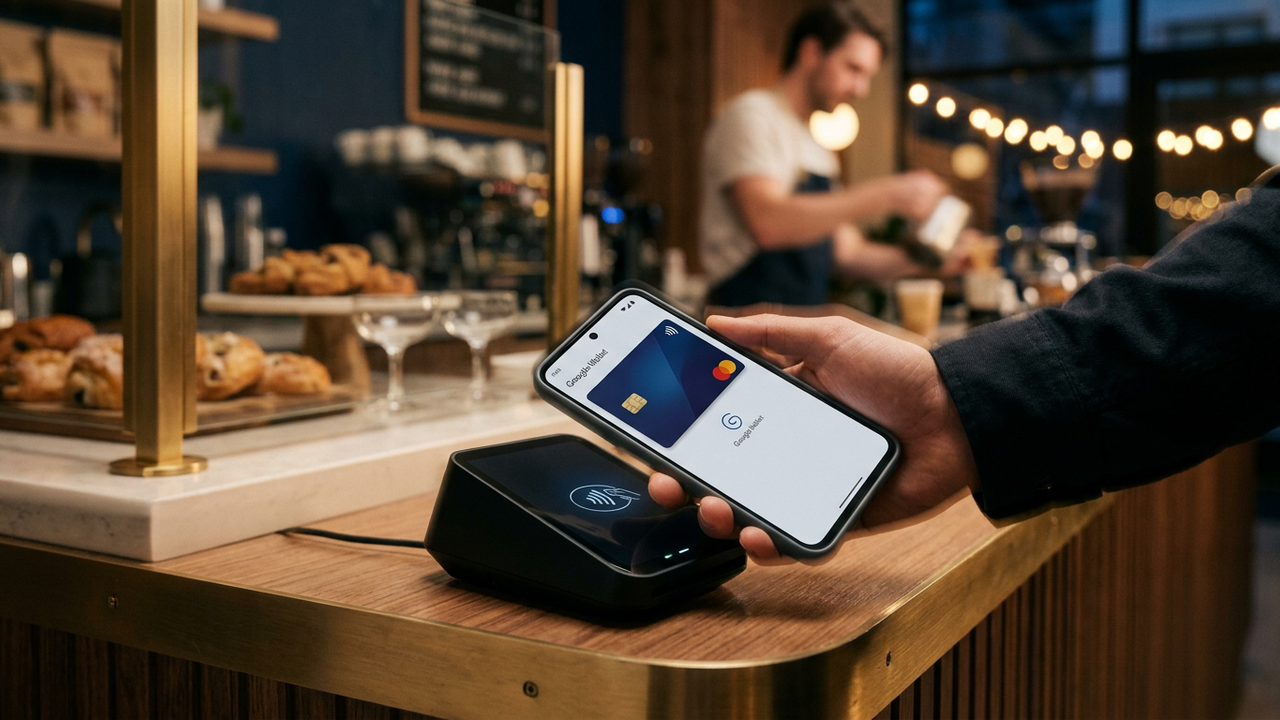
Google Wallet runs the same issuer-validation logic as Apple Wallet: high-tier BINs auto-provision; consumer-prepaid BINs get caught in a "verify with your bank" loop that requires an SMS code to a registered phone. For an anonymous card, that loop is a dead end. CryptoCardy's BIN 541263 (Mastercard Standard) and BIN 485291 (Visa Platinum) both sit in the auto-provisioning bucket and add to Google Wallet in seconds.
Both work. Both hit the same provisioning success rate. The actual difference for Google Pay specifically:
The differences are marginal. For most users, either is fine — pick whichever you don't already have for Apple Pay.
For Chrome autofill (paying on the web with the card in Google Wallet), no separate setup is needed — the card becomes available the moment it lives in Wallet.
Once the card is in your phone's Google Wallet, add it to your Wear OS watch through the Watch app. Each device gets its own DPAN. Tapping on the watch works independently of the phone — useful for activities like running where you don't carry the phone.
Seed-only signup. Send crypto to your account balance.
Mastercard Standard or Visa Platinum — both tuned for wallet provisioning.
Add to Wallet → Payment card → Add new card.
Card number, expiry, CVV. Manual entry — don't try to scan.
Provisioning completes in seconds. Use at any contactless terminal worldwide.
No. Google sees a valid card; the upstream funding source is invisible. The same applies to the merchant — they only see the device-specific DPAN.
BIN 541263 and 485291 rarely trigger this. If they do, delete the card from Wallet and re-add it. If the issue persists, issue a fresh card on the same BIN.
Suica (Japan): yes, via Apple Wallet pass on iPhone or Google Wallet pass on Pixel. Octopus (Hong Kong): partially — open-loop tap-to-pay works on newer MTR turnstiles. Singapore SimplyGo: yes, via contactless on any Google Wallet card.
Yes. Each device generates its own DPAN. You can have the same card on your phone, your Wear OS watch, and a tablet, all transacting independently.
Google's card-to-ads-profile linkage is opaque and changes over time. The DPAN-to-merchant flow is private — merchants don't see your card number. Whether Google internally correlates the card with your search / browsing history is a Google policy question, not a CryptoCardy one. If complete decoupling from your Google identity is required, sign in with a separate Google account dedicated to this Wallet.
3-10 seconds in most cases. If it takes longer than 30 seconds, the card has probably been put into a manual-review queue — usually a sign the device fingerprint looks unusual. Try again from a different Wi-Fi network.
Sign up, top up with crypto, issue a BIN 541263 or 485291 card, paste it into Google Wallet. Done.